It’s a NO DEAL
So there we were waiting for our Graphics and movie dude to create a very important video for a little movement Cindy started in our neighboorhood.
From little steps, we all of a sudden we’re told that our faces would appear on national television, so all of a sudden this idea we had for creating a movie with enough neighbours was a bigger thing. Could we deliver before national television arrived. We were told, that we had to look for someone else, no time at that moment and other stuff that was going on.
It’s on me
Well I suggested that I could give it a try and if that didn’t work out we would look for someone else. Someones daughter also created a professional looking movie with drone footage that was created by one of our neighbours.
Imac lovin’ IT
Never would I have thought that I would be enjoying the part of creating a video. The neighbourhood had sent in videos with a couple of lines of text that was assigned to them. My task was to put it all together, meaning that someone starts a sentence and someone else finishes it. So that looked hard!
I would not have believed that with the Mac OS tools it would be so easy. The tool iMovie is so intuitive that even I could create one video from all the videos like it was done by a pro … and by no means does that say anything about the pro skills that I don’t have! But for basic stuff, this was amazing. Put two videos behind each other, split clips. Delete unwanted parts and zoom in, to find the parts where someone has spoken his last words (oh my) and for the second part, zoom in to the part where someone starts talking the part that was cut away from the first part. Amazing easy. Now some parts were not great in stopping and starting with the audio.
So you right click and detach the audio part. You make in longer to make sure someones audio is allready there and with little dots on the sine wave part of the audio you can easily create fade-ins and fade-outs!
Tricks learned
Some videos length was to short to create longer transitions : you know those fade in screen shots from one part to the other. My wife sent me a whatsapp message with a possible trick: create an empty title screen and put that in between the parts. Now in front and after that empty title screen you can please the desired transitions, as long as you start with a fade to black! I could select those 3 parts and place that in a couple of places, just to make sure we had the same effect in the parts where we wanted it.
After publishing the video, also so easy that I could ask our 9 year old to publish it on Youtube or Vimeo or whatever we wanted, I saw the the picture shown is randomly selected by the iMovie tooling. So all of a sudden one of our neighbours was shown on twitter, facebook, Youtube and Instagram 🙂 … oopsie
Easy fix, but I would never would have figured that out without my girlfriend (Google, this time!) and this was the solution:
- import the created video in Photos
- open it in Photos (do not play!)
- search with the slider the desired picture
- click on the wrench icon and select “set Poster Frame”:
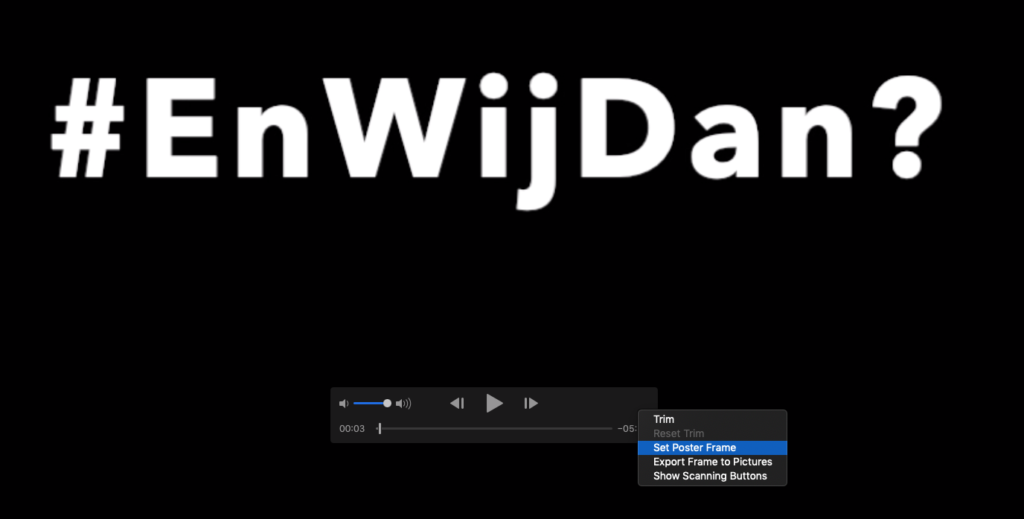
- Save the video and publish your master piece!